Introduction: The Burnout Nobody Talks About
If you’ve ever sat in front of a 90-minute podcast recording at 11 PM, scrubbing the timeline frame by frame looking for “the moment,” you already know why this guide exists. Manual clipping is the single biggest bottleneck killing creator output in 2026, and it’s not close.
I want to show you exactly how to create YouTube Shorts using AI so that “one long video, ten Shorts” becomes “one long video archive, one hundred Shorts,” and it happens in roughly the time it takes to eat lunch. This isn’t a theoretical workflow. It’s the exact stack I use, broken down tool by tool, feature by feature, so you walk away with a system — not just a list of app names.
We’re going deep on content creation efficiency, workflow optimization, and the monetization math behind batch-producing short-form video. Let’s get into it.
Why Speed Is the New Currency in Short-Form Content
Before the tool breakdown, it’s worth understanding why this matters so much right now. YouTube Shorts now racks up over 200 billion daily views across the platform, which has turned short-form repurposing into one of the fastest-growing channels available to creators and brands alike.
Here’s the catch: the algorithm rewards consistency far more than perfection. A channel publishing five mediocre-but-relevant Shorts a day will, in my testing, almost always out-grow a channel publishing one polished Short a week. That’s the entire premise behind learning how to create YouTube Shorts using AI at scale — you’re not trying to make 100 masterpieces, you’re trying to give the algorithm 100 shots on goal and let the data tell you which three or four become hits.
The Core Workflow: How 100 Shorts in 1 Hour Actually Works
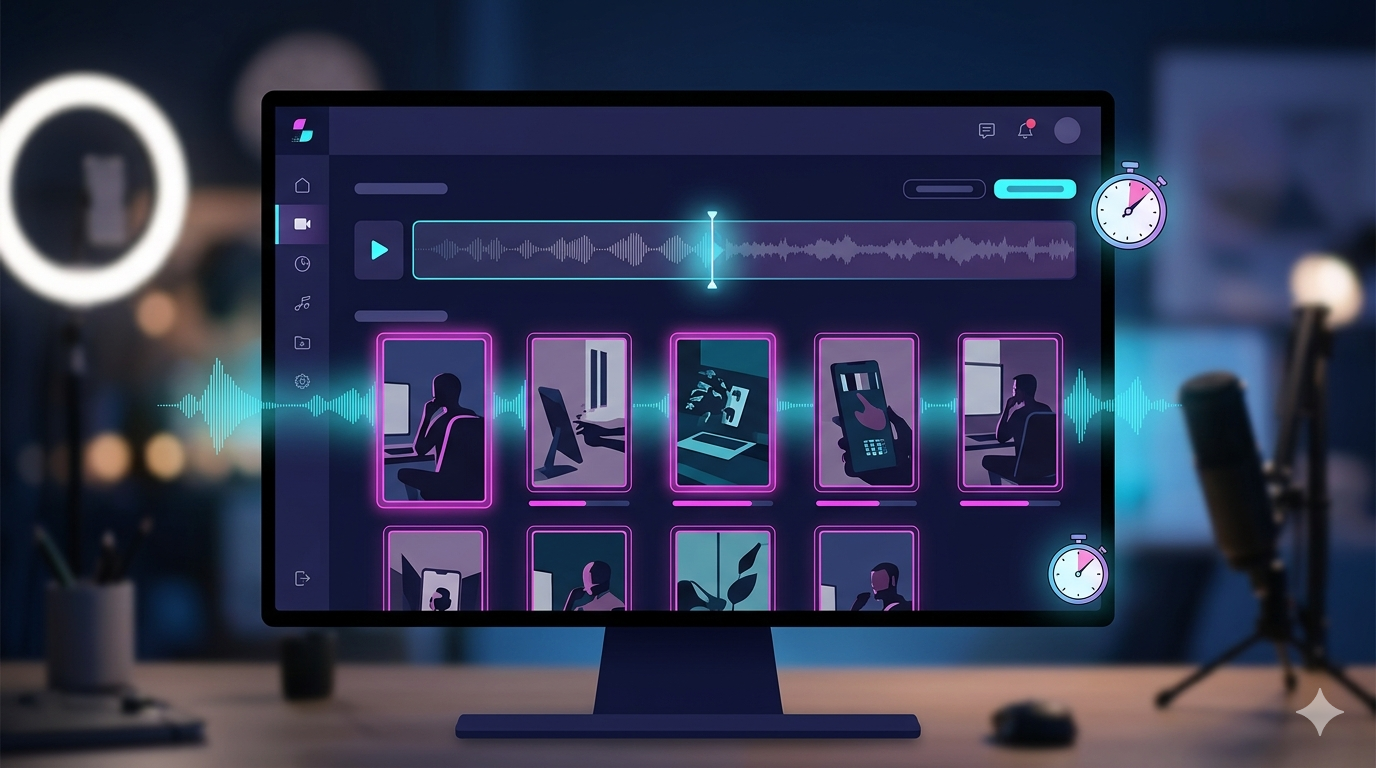
The “1 hour” claim sounds aggressive until you understand the math. You are not personally editing 100 videos. You are feeding AI shorts generators a batch of source material — long-form videos, podcast episodes, webinars, or even raw scripts — and letting automated virality detection, auto-captioning, and auto-reframing do the heavy lifting in parallel, while you supervise and approve.
Step 1: Build a Source Library, Not a Single Video
One 90-minute podcast won’t give you 100 usable Shorts on its own. Batch five to ten long-form pieces — old livestreams, interviews, webinars — into one folder before you touch any tool.
Step 2: Let AI Do the Moment-Detection
This is the part that actually saves the hour. Modern tools use AI-driven analysis to scan for hooks, emotional peaks, and pacing shifts automatically rather than you scrubbing manually.
Step 3: Batch-Export, Then Curate
Export everything the AI flags, even the mediocre clips. Curation happens after generation, using the tool’s own scoring system, not before.
Deep-Dive: The Tools That Actually Make This Possible
This is where most “AI Shorts” articles get lazy and just list ten logos. I’m not doing that. Below is a genuine breakdown of the major players, what they’re actually good at, and where they fall short — because how to create YouTube Shorts using AI efficiently depends entirely on matching the right tool to your specific content type.
OpusClip: The Repurposing Workhorse
Overview & Workflow Integration
OpusClip built its reputation on a simple promise: upload one long video, get back ten ready-to-post vertical clips. It scans long-form footage, identifies high-retention segments, and converts them into vertical-ready clips, all within one workflow. In a daily-batch workflow, this is typically the first stop — you dump your raw long-form library in, walk away, and come back to a folder of candidate clips.
Key Unique Features
- Virality Score: Each clip receives a Virality Score, weighing factors like hook strength, pacing, and retention patterns, helping you publish only the strongest segments and skip manual guesswork entirely. This is the single most useful feature for batch workflows — it does your triage for you.
- Auto-Reframe & Captioning: Automatic 9:16 reframing, AI-generated captions with emoji and keyword highlighting, and reusable brand templates all come built in, meaning a raw 16:9 podcast feed becomes a clean vertical Short without manual cropping.
- B-Roll Generation: On higher-tier plans, you also unlock AI-generated B-roll, multi-aspect exports across 9:16, 1:1, and 16:9, and faster processing speeds — all of which matter once you’re working at batch scale and producing for YouTube, TikTok, and Reels from the same source simultaneously.
Pros & Cons
- ✅ Massive time savings on existing archives — if you’re sitting on a backlog of unused long-form footage, this is genuinely one of the fastest ways to turn that archive into a full Shorts library and sustain a daily upload schedule without bringing on a dedicated editor.
- ✅ Score-based filtering removes a huge chunk of subjective decision-making from your day.
- ❌ It’s fundamentally a repurposing tool, not a generation tool — if you have no source footage, it has nothing to clip from.
- ❌ Heavier processing features (B-roll, faster exports) sit behind higher pricing tiers.
InVideo AI: The Faceless-Generation Specialist
Overview & Workflow Integration
While OpusClip repurposes what you already have, InVideo AI generates from nothing but a text prompt. Feed it a prompt and the system writes a script, then layers in media, voiceover, subtitles, music, and sound effects until you’re left with a publish-ready vertical video. This slots into a batch workflow as your idea-to-video engine — useful for channel days when you don’t have fresh long-form source material.
Key Unique Features
- Prompt-to-Script Pipeline: The process runs through a guided form — pick a workflow, fill in your topic and target audience, choose platform and visual style, then generate — a full creative brief compressed into a few clicks.
- Magic Box Editing: Revisions happen through a command-style edit box, typing instructions like “delete this scene” or “change the voiceover accent” rather than manually scrubbing a timeline, so changes don’t require re-rendering from scratch.
- Faceless Output: Built specifically for creators who don’t want to appear on camera, generating full scripts, scenes, and voiceovers from a single idea.
Pros & Cons
- ✅ Zero source footage required — genuinely starts from an empty prompt box.
- ✅ Magic Box command-style editing is far faster than scrubbing a traditional timeline.
- ❌ Faceless/AI-voice output can feel generic compared to clips pulled from genuine personality-driven long-form content.
- ❌ The free tier carries watermarks, consistent with most generation-style tools in this category.
Fliki: The Multilingual, Brand-Consistent Engine
Overview & Workflow Integration
Fliki occupies a hybrid lane between repurposing and generation. A single idea becomes a full vertical Short — an AI-written script, a voice pulled from a library of over 2,000 neural voices, matching B-roll, animated captions, and a music bed, built specifically with the Shorts algorithm in mind. For channels publishing in multiple languages or maintaining strict brand consistency across a content network, this becomes the default tool.
Key Unique Features
- Hook-Engineered Scripts: Every script opens with a pattern-interrupt hook inside the first second and a half, then structures the rest of the video around the retention curve the Shorts algorithm tends to reward.
- 80+ Language Localization: The same Short can be regenerated in dozens of languages — Spanish, Hindi, Portuguese, Indonesian, Arabic, and more, across more than 80 in total — complete with localized voiceover and captions, ready for global distribution.
- Multi-Platform Re-Export: One generation, multiple exports: the same project reshapes into 9:16, 1:1, or 16:9 without starting over, covering Shorts, square formats, and standard widescreen.
Pros & Cons
- ✅ True one-click multi-language output is rare and genuinely powerful for global channel networks.
- ✅ Paid tiers export clean 1080p files with no watermark and full commercial rights, which matters if you’re monetizing through the YouTube Partner Program.
- ❌ The free tier is capped at just five minutes of generation per month — enough to test the workflow, not to run it.
- ❌ Heavy reliance on AI voices means it suits faceless channels far better than personality-driven ones.
CapCut: The Hands-On Hybrid Editor
Overview & Workflow Integration
CapCut is the outlier on this list because it’s not purely automated — it’s a traditional editor with AI assistance layered in. This matters for creators who want speed and manual control over pacing and storytelling.
Key Unique Features
- AI auto-captions, face-tracking, and style filters that feel native to short-form culture rather than bolted on.
- Free entry point with robust 9:16-native templates built for under-60-second formats.
- Background removal and transition automation that speeds up rough cuts without removing creative control.
Pros & Cons
- ✅ Best option if you record raw phone footage and want AI to handle only the grunt work.
- ✅ Free to start, with no immediate paywall blocking core features.
- ❌ Significantly more manual than OpusClip, InVideo AI, or Fliki — not a true “batch 100 Shorts” tool on its own.
- ❌ Owned by ByteDance, which some brand-safety-conscious channels factor into their tool decisions.
Pricing & Value-for-Money Snapshot
| Tool | Best For | Core Strength | Free Tier Limitation |
|---|---|---|---|
| OpusClip | Repurposing long-form archives | Virality Score + auto-clipping | Watermarks/limited credits on free plan |
| InVideo AI | Faceless prompt-to-video | Magic Box editing | Watermarked exports on free tier |
| Fliki | Multilingual, brand-consistent batches | 80+ language localization | 5 minutes/month generation cap |
| CapCut | Hands-on editing with AI assist | Manual control + AI captions | Most generous free tier of the four |
Value verdict: if your priority is raw volume from an existing archive, OpusClip’s score-based filtering pays for itself the moment it saves you from manually reviewing footage. If you’re starting from zero source material, InVideo AI or Fliki earn their subscription cost back the first time you skip hiring a scriptwriter.
Step-by-Step Practical Tutorial: The 1-Hour Batch Method
- Minute 0–10: Upload 5–10 long-form videos into your repurposing tool (OpusClip) simultaneously.
- Minute 10–15: While that processes, open InVideo AI or Fliki and queue 10–15 prompt-based faceless Shorts on topics your audience research flagged as content gaps.
- Minute 15–35: Let both pipelines run in parallel — this is the actual time-compression trick, not any single tool being magically instant.
- Minute 35–50: Sort outputs by virality/retention score; discard the bottom 30%, keep the rest.
- Minute 50–60: Bulk-schedule the keepers across your upload calendar rather than posting all 100 in a single day.
Final Verdict & Conclusion
Mastering how to create YouTube Shorts using AI isn’t about finding one perfect app — it’s about stacking a repurposing tool, a generation tool, and a scoring system so they run in parallel instead of sequentially. That’s the entire trick behind the “1 hour” number.
Action step: pick one repurposing tool and one generation tool from above, run this exact five-step batch today, and judge results by retention score, not gut feeling.